Monday, June 13, 2016

Oracle MAX: Building my first application (Part 2): Application development

In the last release of Oracle Mobile Cloud Service, Oracle Mobile Application Accelerator (Oracle MAX) and Location Services were released. In my first technical post about MCS 2.0 I am going to focus on Oracle MAX, the new tool that allows us to create applications without coding, and that will enable business users, and people that doesn't know about programming, to build applications easily.

This is a 2 part post where you can find:

In the first part of this post we built a Custom API that we will consume from Oracle MAX.

In order to access Oracle MAX, In Oracle MCS applications menu, we have to click on Mobile Applications.

If we want to allow a business user to access Oracle MAX we need to asign them MobileEnvironment_BusinessUser role. Any other user should not have this role as it will not be allowed to access Oracle MCS itself.


This is what we will see the first time we log into Oracle MAX. As we don't have any application, we can just create a new one.


Once we click on New Application, we will see the first wizard. We have to set the name of the application. This is the name that we will see in our device.


The next step is to define the layout among the predefined ones.

Wednesday, June 8, 2016

Oracle MAX: Building my first application (Part 1): Custom API design

In the last release of Oracle Mobile Cloud Service, Oracle Mobile Application Accelerator (Oracle MAX) and Location Services were released. In my first technical post about MCS 2.0 I am going to focus on Oracle MAX, the new tool that allows us to create applications without coding, and that will enable business users, and people that doesn't know about programming, to build applications easily.

This is a 2 part post where you can find:

Before that any user can create an application we have to design correctly our Custom API.

Oracle MAX uses business object, so first we need to define schemas for the endpoints.

In this quick example, in our Custom API we are going to have 2 endpoints

/posts that will return a list of all posts, and
/post/id that will give us the information of the post.


Now that we have our endpoints create we have to create schemas for them.
In the left hand side menu, we have to click on 'Schema', and if we don't have any schema yet, click on 'New Schema' button.

The first one is Post schema.


This is the base schema for the post object. Now we need to create a schema for every endpoint. 
For /posts endpints we will have getPosts


And for /posts/id endpoints we are going to create getPost schema.


The first step is completed. Now we need to associate the schema to each endpoints and create Mock Data in the responses to each endpoint.

At the moment it is mandatory, and if you don't have mock data you will not be able to create lists in the application. I would like to thanks Denis Tyrell and Laura Akel for their help with this issue.

For each endpoint we have to click on methods.


Then in responses we have to select the schema that corresponds to the endpoint by adding new Media Type.


And also adding mock data in examples tab.


Our first endpoints is finished, and our second endpoints will looks like:


The last step is to publish the API, because we will not be able to consume it if it is not published.
In API menu, right click on the desired API and click on Publish.

I am not going to implement the APIs as you cna check other posts like Post 1, Post 2, Post 3 or OTN Article. Implementation and design should be done by someone with development skills,

In the next post we will build the application itself and this step can be done by anyone, as the application development is based on wizards and we don't have to write any line of code.


Sunday, June 5, 2016

Oracle MCS: Creating PDF files in Custom APIs

Oracle Mobile Cloud Service allows you to implement Custom API using node.js. This is a powerful feature as it allows you to use any of the existing node.js modules in your implementation.

In this post I am going to show you how to create and download a PDF file that will contain the weather information for the provided city, that we will get calling a REST Connector.


If you don't know how to create a REST Connector check this post: Oracle Mobile Cloud Service: Create an API that calls a REST web service


First we need to create a connector. This is the URL we are going to use:

http://api.openweathermap.org/data/2.5/forecast/daily

Openweathermap is a free rest api where we can get the weather forecast.
We have to create some rules as we need to pass some parameters into the url. These are default values that we can override when calling the connector.


The next step is to create a Custom API.


We are going to allow annonymous calls to make it easier.


We need an endpoint with a parameter. This enpoint will have a GET method.


The last step is to implement our Custom API.
Now we need to download the JavaScript Scaffold.
At this point you need to have node.js installed (You can donwload if from this link)
After that we need to install pdfkit module.
Before executing 'npm install pdfkit' you need to be in the folder where package.json is.


After that node_modules folder will be created.
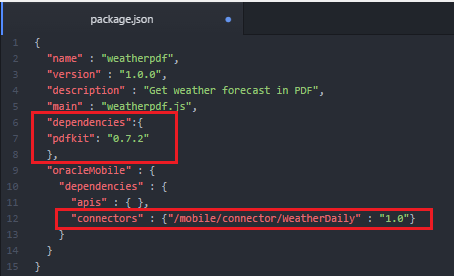
The next step is to edit package.json file to add the dependencies.
We need to add pdfkit and also we have to add the connector in oracleMobile dependencies.


PDFKit allows us to create PDF files and add text, images vector graphics, links, etc to our pdf.
In this example I am just creating one line (line 41) and inserting text based on the values returned by the connector.


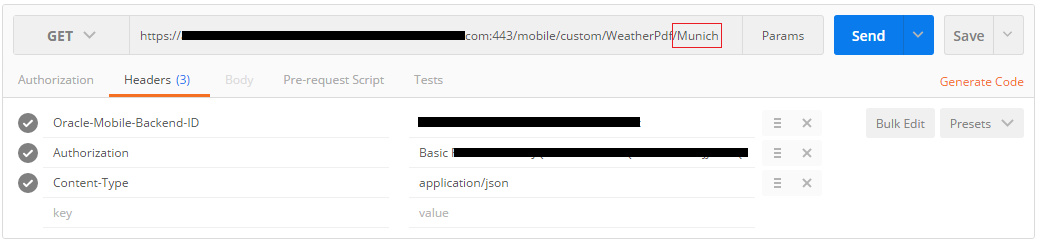
We cannot test the API in MCS tester as the file cannot be downloaded, but we can use postman to do it.


We can see that the downloaded pdf contains Munich weather information for the next 3 days.


Monday, May 30, 2016

ADF: af:table filter modifications using a custom Query Listener

In one of our last projects we had the requirement to allow the user to filter tables using the table filter feature. By default you can filter String fields starting with the word that the user provides, but our customer needed to find the rows that contained the criteria.

This is an easy task that can be accomplished by creating a custom Query Listener method.


As by default the filter works with "Starts with" condition you will see that filtering by "tra" will give no result although departments like Administration exists.
In this example we will use Departments table in HR schema.


When we drag and drop to create a table and we set it to be filterable, we can see that a query listener has been created by default.


As we need to modify the filter values we need to create ouor own query listener.

The idea of this method is to get every value, and if it is String we have to change the original value and concatenate '%' before and after the value.

After that we need to call the default query listener that we can get from queryListener property in the table component.

If we end here, the  user would see the new filter with % symbol, so we are going to remove it and leave it as the user type it.


This is the helper method we use to call the default  query listener.


The last step is to set our new method as the table's query listener.


If we run the application we can see that if we filter by "tra", we can now see some records.


Tuesday, May 17, 2016

ADF: DVT Charts based on a dynamic vo

In one of our latest projects we had the requirement to create a reporting feature that based on some filters we had to built a custom query and display those results in a chart.
In this post I will show you the approach we followed.


The first step is to create a dummy view object. We are going to use SELECT * FROM DUAL as its  query.


After this we need to add this view object to our Application Module data model and also create AM implementation class.


The main thing we are going to make is to create a List in our bean, based on a POJO that we will populate with our viewobject data.
We are going to add 3 attributes to our java class with their getter and setter methods.


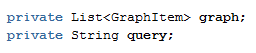
After that, in our page's bean we need to create a couple of properties. The first one is the List that will hold the values, and that will be the value property of the graph, and the second one is a String that will be the value property of the input where we will introduce the query.


The next method of the bean is the one to create the graph.
The first three lines let us create the viewobject a runtime passing the query and the view object instance.

In the rest lines of our method we are just iterating the view iterator and populating the graph List object.


The last step is to create the page that will looks like this


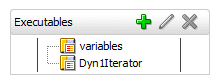
In the page definition file associated to the page we have to create the iterator binding that we are using in the bean.


While testing if we use this query, we will see a graph with the data.


And if we change it, the graph will change with the new query's data.


Sunday, May 15, 2016

Oracle MCS 16.2.3 (v2.0) realeased. MAX and Location Services are now available

Oracle Mobile Cloud Service 16.2.3 (v2.0) has been released. This is the second major release in less than 1 year (Oracle MCS was released in July 2015). Although not every MCS instance has this new version, we can already see what's new in it.


  • Location Based Services
We are now able to present information based on the location or preferences of the user. Thanks to the Location API we can get information about the location devices, assets and places.


Location Device is any device that provices location services, for example a beacon.
Currently Oracle MCS provides support for this protocols:
    • Altbeacon (Open Source)
    • Google's Eddystone
    • Apple's iBeacon
The second one is a Place  that is a physical location that you can associate with a device.
And the last one is an Asset. This is a mobile object that can be also associated with a location device.

Oracle MCS provides a REST API using the following endpoint "/mobile/platform/location/devices"


  • Oracle Mobile Application Accelerator (Oracle MAX)
Although I already had the chance to see what Oracle MAX offered back in January in a Workshop in Madrid, I was exited to see new features that MAX provides since then.

Oracle MAX is a Rapid Mobile Application Development (RMAD) tool that help us to build applications easier and faster. This tool allows business users and non developers to build applications.

Wednesday, May 4, 2016

Oracle MAF: Oracle MCS as authentication provider

An usual requirement when working with Oracle Mobile Application Framework and Oracle Mobile Cloud Service is implement the login against Oracle MCS.
In this post I am going to show you how to configure Oracle MCS as an authentication provider in Oracle MAF.


  • Creating a Realm
A realm is a security context for a ser of users. We can have only one realm for each Mobile Backend, but we can have multiple Mobile Backend using the same realm.
Using one or more realm in MCS will depend on what users we will like to give access to our application.

Under Applications, we can find Mobile User Management. By default there is one realm named 'default', but we can create a new one by clicking on 'New Realm' button.


In the realm we can find some user information by default altough we can add more properties.


  • Create and configure a Mobile Backend
A Mobile Backend (MBE) is the gateway to Mobile Cloud Service. If we want to access any available resource from MCS, for example an API, we have to do it though an MBE.

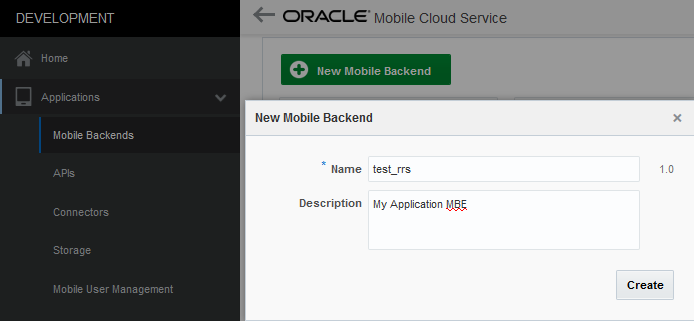
We can find Mobile Backends option under Applications menu option.

Click on 'New Mobile Backend' to create a new one.


Once you have created the MBE head to Users option and click on 'Change user realm', by default the MBE has a realm but in this case we need to set the new realm we have just created. This is not the case, but we can also set a default realm for every new created MBE.